Showing posts with label Jailbreak iPhone 3G. Show all posts

Finally, Dev-Team had released the untethered jailbreak for iOS 4.3.1 on all iOS devices from iPhone to iPad(except iPad 2) their next objective was to update Ultrasn0w to work on iOS 4.3.1. iPhone 4 users must take extra care while updating to iOS 4.3.1 as they need to prevent the baseband from upgrading. This update only brings iOS 4.3.1 support to basebands which could be unlocked earlier. Therefore, only baseband 01.59.00 can be unlocked on iPhone 4.

Here's the list of basebands that can be unlocked using Ultrasn0w 1.2.1:

iPhone 4:

  • 01.59.00

iPhone 3G/3GS:

  • 04.26.08
  • 05.11.07
  • 05.12.01
  • 05.12.04
  • 06.15.00
Note: For T-Mobile users in USA should disable 3G under Settings > General > Network. This is due to an incompatibility with T-Mobile’s 3G. Those in other countries do not need to do this, unless they face a problem.

Step 1: Use PwnageTool or Redsn0w to jailbreak your iPhone.
Note: For iPhone 4 users, must use PwnageTool since Redsn0w does not create custom IPSW which is required to prevent baseband upgrade.

Step 2: Launch Cydia on iPhone and add “http://repo666.ultrasn0w.com” as the new repository URL. You can simply tap “Manage” -> “Sources” -> “Edit” -> “Add” to add the repository URL. If your not clear about this, checkout my post here on how to add sources to Cydia. This step only for beginner users, for those who already know about adding repo you may ignore this step.


Step 3: Then tap “Search” and search for “ultrasn0w” application


Step 4 : Install “ultrasn0w” and then on confirm. If you have already installed Ultrasn0w before, you will see a modify button instead of Install, like in the screen shot above.


Step 5: After, Cydia has installed Ultrasn0w, you should reboot your iPhone. To restart, press and hold the power button till you see the slide to power off screen. Now slide the button to turn your iPhone off and then turn it back on. You should now have an unlocked iPhone with iOS 4.3.1.

A new jailbreak tool called “Spirit”, developed by Comex. The tool also supports untethered jailbreak for iPod touch, as well as, the iPad using the latest firmwares. The Spirit tool is free for download and supports both Mac & Windows platform. The jailbreak process via Spirit is also simple and straight-forward. By just one-click, it then jailbreaks your iPhone, iPad or iPod touch automatically.

But before you download the tool, please read through the following highlights carefully:

  • Spirit is not a carrier unlock – Don’t mix Spirit with other iPhone unlock tool (e.g. blacksn0w). You can only use Spirit to jailbreak your device. It will not unlock your iPhone.
  • If you are already using a tethered jailbroken iPhone 3GS and want to use Spirit for untethered jailbreak, you will need to restore your device via iTunes. However, if you are using unlocked iPhone 3G or 3GS, do not upgrade to iPhone OS 3.1.3 or else you will lose the unlock. Please stay with iPhone OS 3.1.2 for jailbreaking.
  • Spirit is an untethered jailbreak for iPad, iPhone, and iPod touch on the latest firmwares, including firmware 3.1.2, 3.1.3, and the iPad-exclusive 3.2. So, if you are using lower version of firmware (aka iPhone OS), you will need to upgrade your device to the latest firmware version before using Spirit.
  • Spirit does not hacktivate your iPhone. To use it, it expects your device has already been activated. In other words, if your iPhone is stuck at the “Connect to iTunes or Emergency Call screen”, Spirit will not work for you.
  • Make sure you’re using iTunes 9 or up before using Spirit.
To download this jailbreak tool, you can check out from its official website. It’s free for download.

As mentioned in previous posts, it is warned that you SHOULD NOT upgrade to iPhone 3.1.3 if you’re using a software-unlocked (e.g. via ultrasn0w) iPhone 3G/3GS. Otherwise, you will end up with a locked iPhone again. While you upgrade to iPhone OS 3.1.3, the baseband of your iPhone is also upgraded to v5.12.01. That’s why your iPhone is locked again after the OS upgrade.

Presently there is no unlock solution for iPhone 3GS user. But if you’re using iPhone 3G with older version of bootloader 05.08, you may use Fuzzyband to downgrade the baseband version from 05.12.01 to 04.26.08, which can be unlocked using ultransn0w.

Note: Fuzzyband only works on iPhone 3G.

How To Downgrade Baseband From 05.12.01 To 04.26.08

1) You need to jailbreak your iPhone. As you have already upgraded to iPhone 3.1.3, please use redsn0w to jailbreak the iPhone.

2) Launch Cydia and search for “Fuzzyband”. Then download and install this application.

3) Go back to home screen after installation. Tap “Fuzzyband” icon to launch it.

4) Tap the “Downgrade” button to kick off the baseband downgrade.

5) Once you complete the baseband downgrade to 04.26.08 successfully, you can download ultrasn0w to unlock your iPhone. For instructions, you can follow the my guide here.

Here is a new video preview of ih8sn0w’s snowbreeze program for windows. Sn0wbreeze will let you create custom firmwares on windows like the dev team’s pwnage tool on mac. Read here for more info.


Blackra1n is a great jailbreak tool for iPhone 2G, 3G or 3GS running OS 3.1.2. It’s simple and quick. But it does come with some bugs. After jailbreak your iPhone using blackra1n, you may encounter one of the below issues:


  • Fail to launch YouTube
  • GPS doesn’t work if you’re using iPhone 3G/3GS
  • WiFi is not working
I guess GeoHot, the developer of blackra1n, will fix these bugs in the next version update. However, at the mean time, you can follow these workarounds to fix the issues. Perhaps it may help you for this moment.

How To Fix WiFi Issue

To fix the WiFi issue after blackra1n issue, you can simply reset the network settings. Go to “Settings” -> “General” -> “Reset” and select “Reset Network Settings”. Tap on the “Reset Network Settings” button again to confirm. After resetting, the WiFi issue should be fixed.


How To Fix YouTube and GPS Issues

It’s very interesting the PushFix patch, which is originally designed for fixing push notification, can be used to fix the YouTube and GPS issues. After patching with PushFix, your iPhone should be able to use YouTube and GPS.

As claimed by GeoHot, blackra1n is an universal jailbreak solution for all models of iPhone and iPod touch. This guide will walk you through on how to jailbreak iPhone OS 3.1.2 using blackra1n on Windows.

Before you start, please read through the following notes carefully. If you’re confused, I suggest you to hold off the jailbreak and read the note again:


  1. Blackra1n only jailbreaks your iPhone and does not perform the unlock to let use other unofficial SIM.
  2. For those using software-unlocked iPhone 3G or 3GS, please do not upgrade to iPhone 3.1. Otherwise, you’ll lose the unlock, as the firmware update will also the baseband.
  3. Blackra1n will not hactivate your iPhone. That means, you’ll need to use official SIM card for activation purpose.
  4. Only tethered jailbreak is available for iPod touch device.
  5. Though it’s reported that blackra1n works for all models of iPhone, there is no guarantee that it will work for you. So, use it at your own risk.
  6. Disclaimer: Jailbreaking may void your warranty of iPhone. Again, jailbreak it at your own risk.

Jailbreak iPhone 3.1.2 using blackra1n

Step 1: Make sure you’re using iTunes 9.0 or 9.0.1. You can download the latest version of iTunes here.

Step 2: Download Blackra1n from blackra1n.com and save the blackra1n.exe to a folder.

Step 3: Connect your iPhone to your computer via USB. Launch iTunes and upgrade your iPhone to iPhone OS 3.1.2.

Step 4: After your iPhone has upgraded to firmware 3.1.2, launch blackra1n.exe.

Step 5: Ensure your iPhone is still connected to your computer and click “make it ra1n” to kick off the jailbreak.


Step 6: Once you click the button, the jailbreak process starts and it’ll take around a minute to complete.

Step 7: Wait until you see the following message and your iPhone should be jailbroken after reboot.


Step 8: Next, you can tap the blackra1n icon in your iPhone screen and install Cydia.


Step 9: Finally, reboot your iPhone

Step 10: When you are all done, load up blackr1n again and use the uninstall blackra1n to remove the blackra1n icon. It’s not needed any longer.

Step 11: Load Cydia, let it reorganize your apps, do the upgrades, and install your software.

Step 12: For beginner user, you might be want to know what to do after Jailbreak. Check out my post here on how to use Cydia. For those who already knew about the Cydia you could ignore this step.

TroubleShooting & Fixes

1) Blackra1n just crashes – You don’t have itunes 9 installed or your apple mobile device service is not running. Install itunes 9 or reboot to solve.

2) Blackra1n says it’s missing QTCF.dll. Put QTCF.dll into the same folder with blackra1n.exe and run it again.

3) Blackra1n hangs on running… – You need to kill iTunes and iTunesHelper.exe. This step should only take a couple seconds and something should happen.

4) If you stuck in recovery mode, you may try this below and it may help you:

-Turn off your antivirus
-Should stuck while blackra1n running, restart your phone. and try again
-while its still “running” press and hold the home and lock buttons till the phone reboots the screen will pop up saying “your jailbreak is done”, press okay and when the phone finally reboots unlock the phone if u do not find the blackra1n icon anywhere, restart blackra1n one more time. and shortly after just as everyone else has been saying your phone will be jailbroken, the screen ” your jailbreak is done” will come up again and this time blackra1n will be there an your phone jailbroken.

5) If you have a problem with using Disk Aid and iPhone Browser after jailbreak with BlackRa1n, checkout here how to fix it.

6) If you have a proble with YouTube, GPS and WIFI after jailbreak, checkout here how to fix it.


[via iclarified.com]

Geohot has posted the first screenshot of his blacksn0w unlock for the iPhone 3G and 3GS. The unlock which will be run after completing a jailbreak with the blackra1n jailbreak is expected to be released on November 4th.

Blacksn0w does support the latest 05.11.07 baseband so for those who accidentally upgraded, you will be able to get your unlock back.


A few hours ago, iPhone Dev team released an update for its popular jailbreak tool – PwnageTool v3.1.4. As usual, PwnageTool is for Mac only. The latest version adds the jailbreak support for iPhone OS 3.1.2. You can use it to jailbreak iPhone 2G/3G/3GS and iPod Touch 1G/2G.

The earlier version of PwnageTool failed to jailbreak out-of-the-box iPhone 3GS, this update also allows you to jailbreak iPhone 3GS, which has not been jailbroken before. As explained in iPhone Dev team’s blog, it makes use of an exploit discovered by several iPhone hackers:

this version of PwnageTool has a side feature to jailbreak your 3GS. It uses a simple implementation of the usb control msg hole found by chronicdev, geohot, and our very own gray. Now that the hole is public and in use, we expect Apple to close it by the next major firmware update. That’s why 3GS users need to get their ECID hashes for 3.1.x now, and need to stay onboard the “jailbreak train” in all future updates.

Before you download and jailbreak with PwnageTool, please read through the notes very carefully, especially you’re using iPhone 3G/3GS and rely on ultrasn0w for the unlock:

  • If you’re using iPhone 3G/3GS and rely on ultrasn0w for the unlock, please ensure you do not upgrade to iPhone OS 3.1.2 directly via iTunes. By doing so, the upgrade will also update the baseband of your iPhone and that will make your iPhone unlockable. So, always remember to upgrade your iPhone via a custom .ipsw file created by PwnageTool. The custom ipsw file can preserve the baseband and let you unlock it via ultrasn0w.
  • For those you have jailbroken your iPhone before (by whatever means), you do not need to mess with DFU mode. After you create the custom ipsw, simply restore it via iTunes by holding OPTION-key and click “Restore”.
  • To use PwnageTool for jailbreak, please use iTunes v9.0.1.
  • If you use internet tethering on a carrier that doesn’t officially support it, you’ll lose it by going to 3.1.2. So, if you need the internet tethering hack, please stay away from the upgrade.
  • PwnageTool can only jailbreak out-of-the-box iPhone 3GS running iPhone 3.1.x. It cannot unlock the baseband. If you do not know the difference between jailbreak and unlock, check out the iPhone terminology.

If you have no problem with the above, go ahead and download PwnageTool v3.1.4 from here or here. I know many iPhone jailbreakers are not using Mac OS X and awaiting the release of Windows version of PwnageTool. iPhone Dev team has posted a note on that and explicitly announced:

There is no Windows version of PwnageTool it is a Mac OS X tool only, we are not developing a Windows version of PwnageTool.

However, another team of iPhone hackers are porting PwnageTool to Windows called snowbreeze.

GeoHot has just released Blackra1n for Windows to jailbreak iPhone OS 3.1, as well as, 3.1.2. For those who do not heard of blackra1n, it’s another jailbreak tool, similar to redsn0w, but developed by another brilliant iPhone hacker, GeoHot. He’s well-known among the jailbreak community for offering the first unlock solution for the original iPhone back in 2007 and purplera1n.

So, what’s Blackra1n? Blackra1n is the very first jailbreak tool on Windows. As claimed, the jailbreak solution should work on all models of iPhone and iPod touch devices. Compared with iPhone Dev team’s jailbreak solutions, the jailbreak process should be quick for blackra1n as mentioned by GeoHot:

blackra1n is a 30 second ALL device 3.1.2 jailbreak.

It’s a great news for those awaiting jailbreak solution on Windows. Before you go ahead to download the software, however, please read the following note carefully:

  1. Blackra1n only jailbreaks your iPhone and does not perform the unlock to let use other unofficial SIM.
  2. For those using software-unlocked iPhone 3G or 3GS, please do not upgrade to iPhone 3.1. Otherwise, you’ll lose the unlock, as the firmware update will also the baseband.
  3. Blackra1n will not hactivate your iPhone. That means, you’ll need to use official SIM card for activation purpose.
  4. Only tethered jailbreak is available for iPod touch device.

With the release of blackra1n, iPhone Dev team also posted a note about using blackra1n on their blog:

geohot released a Windows jailbreak called “blackra1n” which is similar to redsn0w in that it covers multiple devices (and it covers beyond just firmware 3.0.1 where redsn0w currently stops). blackra1n is not a carrier unlock. You must always avoid updating your baseband to maintain your unlockability. If you use blackra1n to jailbreak 3.1 or 3.1.2, the steps you take before running blackra1n will prevent the unlock from working on your iPhone for potentially a very long time. By the way, we haven’t yet tested whether a blackra1n’d device can accept a custom IPSW without tweaks, but if it doesn’t then it should only require a minor change.

If you’re ready to jailbreak your iPhone with Blackra1n, go ahead to blackra1n.com to download the software. For Mac users, blackra1n does not offer support for Mac yet.


Download PogoPlank Here


How To Install PogoPlank


Ssh your iPhone. You may see instruction on how to ssh your iPhone. Also you can checkout my post on how to install .deb file using ssh. And make a folder called AutoInstall in/var/root/Media/Cydia/ so you have /var/root/Media/Cydia/AutoInstall which is case sensitive and drop this debs file in the autoinstall folder, respring and reboot your iPhone.

Basically, this allows you to view the videos you record with Cycorder or VideoRecorder directly in your Camera Roll. Additionally, you can trim the videos, exactly like on an iPhone 3GS. You should notice a few warning before taking any further action:

  • This is a hack. You do this at your own risks!
  • This seems to be a little buggy. Again, perform this hack at your own risks!
  • When you trim a video, you lose the original video
  • When the toggle is on, you can’t take pictures anymore (switch it off to take pictures again)
  • This is only available and compatible for jailbroken iPhones. You have to jailbreak your iPhone first. Checkout my tutorial on how to jailbreak your iPhone ( iPhone 2G / iPhone 3G / iPhone 3GS).
  • In order to set this up, you’ll need a few applications available from Cydia: SSH, Terminal, SBSettings, and either Cycorder or VideoRecorder (I recommend Cycorder).


How To Install Video Toggle Editor

1. Download Video Toggle and unzip the file.

2. SSH the unzipped file to \private\var\tmp\..You may see instruction on how to ssh your iPhone

3. Enter Terminal as a Super User (type su – username: root – password: alpine) and type bash /private/var/tmp/VideoToggle/install (note there is a space between “bash” and “/”

4. Your iPhone should respring by itself. If it doesn’t, simply reboot your iphone.

You should now have a new toggle in SBSettings that allows you to edit videos recorded. To try it out, either record a new video or go to your Camera Roll if you already recorded videos and you should see your videos there. Open a video and you should see the bar that lets you trim videos.


Apple has released Snow Leopard, the new version of Mac OS X, on Aug 28. It brings lots of refinements, extends the support of 64-bit computing and MS Exchange. The best is its low price point that it only costs US$29. If you’re a Mac user, probably you are considering to purchase the new OS. But for those iPhone jailbreakers, you may also concern if the new OS impacts the jailbreak process.

So, here is the good news. The iPhone Dev Team has confirmed it’s safe to upgrade to Snow Leopard and all jailbreak tools including redsn0w & PwnageTool are compatible with the new OS. Snow Leopard also doesn’t pose any threat to Ultrasn0w, the unlock tool for iPhone 3Gs & 3G. Quoted from iPhone Dev team’s blog, here is what the team mentioned about the status of jailbreak tools:

* You can use redsn0w to jailbreak any iPhone or iPod Touch using OS X, Windows, or Linux. For both 3.0 and 3.0.1 firmwares, you should point redsn0w at the 3.0 IPSW. If you see it hang at “waiting for reboot”, just unplug and replug that USB cable.
* You can use ultrasn0w to unlock the iPhone 3G/3GS, or BootNeuter to unlock the iPhone 2G. Both ultrasn0w and BootNeuter are available via Cydia.
* You can use PwnageTool for Mac to create custom IPSWs with pre-installed packages.

If you plan to upgrade to Snow Leopard, Amazon is now offering a discount and you can purchase Mac OS X version 10.6 Snow Leopard for US$25 only.

The Dev Team just released a new version of PwnageTool that will jailbreak the iPhone 1st gen., iPhone 3G, and the iPod Touch 1s gen. The new iPhone 3G S is not supported yet.

According to the Dev Team:

This is the low down on our tools for use with the 3.0 firmware from Apple, read the whole post in full before attempting anything. Because of some bugs and unexpected changes this will be a multipart release, starting with the release of PwnageTool for Mac OS X. QuickPwn for Mac OS X and Windows will follow sometime soon, please don’t bug us about it, we are working flat out to get everything finished to release them.

  1. GOLDEN RULE: If you are using a 3G iPhone with yellowsn0w and rely on yellowsn0w to obtain cellular service, then you should NOT use PwnageTool right now. UltraSn0w is not included with this release and therefore your baseband will be locked and unable to use an operator other than the official one it was bought for. UltraSn0w will be release via APT (cydia and icy) soon. If you have an original iPhone (1st generation) then 3.0 unlock works with this PwnageTool release.
  2. Yellowsn0w in its current form will NOT work with the baseband version that is present in the 3.0 update, you will need Ultrasn0w, which will be released sometime soon, Ultrasn0w will work with all iPhone 3G models (but not 3GS), even ones that were previously unlockable, Ultrasn0w (when available) will be released via APT (this means you can get it via Cydia or Icy).
  3. Please read all parts of this post before downloading and using these tools.
  4. Read items 1, 2 and 3 again and again.
  5. At the bottom of this post are the bittorrent files for the 3.0 capable version of PwnageTool.
  6. This app is suitable for the recent 3.0 release.
  7. PwnageTool will NOT work for the iPhone 3GS.
  8. PwnageTool WILL work for Original iPhone (1st Generation), Original iPod touch (1st Generation) and the iPhone 3G.
This will just unlock the 1st gen iPhone. It will not unlock your iPhone 3G or iPhone 3G S. The Dev Team will release Ultrasn0w soon and this is the tool you will need to unlock your iPhone 3G. iPhone 3G S owners will have to wait for the Dev Team to come up with a jailbreak first.

Official Bittorrent Releases -

Unofficial Mirrors

UPDATED: Ultrasn0w is available now via Cydia!. Check out my post here on how to unlock iPhone 3G using Ultrasn0w.

cFor those who have accidentally upgraded your iPhone 3G to firmware 2.2.1, this is a great news for you. As you may know, by upgrading the iPhone 3G to firmware 2.2.1, Apple also updates the baseband version of iPhone to 2.30.00. Presently, this baseband version is not supported by yellowsn0w, the free unlock software for iPhone 3G. Thus, if you have accidentally upgrade to firmware 2.2.1, there is no software-based unlock problem to unlock your iPhone 3G. But today, here is an answer you’re searching for.

Today, the iPhone hacking community releases an easy-to-use baseband downgrade solution called 3G Fuzzyband Downgrader. By using this downgrader, you can downgrade any baseband version (2.30.00 - 4.26.08) back to 2.28.00. That means you can then use yellowsn0w to unlock iPhone 3G.

The 3G Fuzzyband Downgrader can be downloaded via Cydia (BigBoss source) and it is absolutely free. But make sure you’re using firmware 2.2.1, which is one of the requirements to use this downgrader. On top of that, the downgrader only supports Bootloader v5.8. Not sure what version of bootloader you’re running on? No worry. The downgrader application will automatically detect the baseband version for you.

The app is extremely simple and intuitive. What you have to do is to launch the downgrader and tap the “Downgrade” button. It’ll then verify your bootloader version and proceed with the downgrade.


Once you have the baseband downgraded, you can use Yellowsn0w to unlock your iPhone 3G 2,2,1 firmware. I still have to warn you: Use it at your own risk and make sure you only run the app on iPhone 2.2.1.


The instructions below is quite similar with unlocking & jailbreaking iPhone 2.2.1 firmware update (iPhone 2G), the different things here, you don't need to unlock your iPhone 3G. But for iPhone 2G, unlocking and jailbreaking is very recommended instead. See the details on how to unlock & jailbreak iPhone 2G for 2.2.1 firmware.

Before you run into the details of jailbreak, i would like to mention about "unlock" and "jailbreak" words here. You’re probably aware that the word “Unlock” is missing in the post title. It's meaning to say that, there is no solution to unlock iPhone 3G for 2.2.1 firmware so far. This statement valid by the time you read this post. That means you are still bind to single carrier and can’t use SIM card from other carriers.

Let me remind you here, "unlock" word is refer to the process to open up your iPhone to accept all carriers. Unlocked iPhone allows you to use SIM card from all carriers. You are no longer bind to the official carrier (e.g. AT&T) approved by Apple. And for, "jailbreak" your iPhone means you are allowed to install 3rd party applications on iPhone. This applies to all version of firmwares. Anyways, this post is devoted for iPhone 3G users who want to jailbreak their iPhones.

Note: This guide is now updated with procedures for iPhone 3G 2.2.1 firmware. But you should read this warning carefully. Presently, you cannot unlock iPhone 3G 2.2.1 firmware using Yellowsn0w. Please use firmware 2.2 if you're planning to unlock. Check out my post on how to unlock iPhone 3G 2.2 firmware using Yellowsn0w.

UPDATED: A good news for iPhone 3G 2.2.1 user, for those who accidentally upgrade to 2.2.1 firmware and intended to upgrade with this latest firmware, now you can unlock iPhone 3G 2.2.1 firmware using YellowSn0w. Check out my post on how to unlock iPhone 3G 2.2.1 firmware using YellowSn0w. Please bear in mind, its only for iPhone 3G 2.2.1 firmware and unjailbroken iPhone 3G. Please ignore the statement above if you understand this matter.

Important: please hold and read through statement below. Before your proceed with jailbreaking you should read quoted from iPhone Dev-Team below.

This is the low down on our tools for use with the 2.2.1 firmare from Apple, read the whole post in full before attempting anything. Please note that the Windows version of QuickPwn has been updated to version 2.2.5-2

  1. GOLDEN RULE: If you have a 3G iPhone running 2.2 firmware and you want to keep your ability to use yellowns0w (or the option to use it in the future) do NOT use QuickPwn, and do not use the official ipsw or the iTunes update process without using PwnageTool.
  2. Yellowsn0w will NOT work with the baseband version (02.30.03) that is present in the recent 2.2.1 update. If you want to use Yellownsn0w you will need to create and restore using a custom .ipsw that will allow you to update safely to 2.2.1 without applying the 02.30.03 baseband update. You’ll then have a 3G iPhone running 2.2.1 with an older baseband version that is still vulnerable to yellowsn0w, following these steps ensures that yellowsn0w will still operate.
  3. Please read all parts of this post before downloading and using these tools.
  4. Read items 1, 2 and 3 again and again.
  5. At the bottom of this post are the bittorrent files for the latest versions of PwnageTool and QuickPwn.
  6. These apps are suitable for the recent 2.2.1 release.
  7. The Yellowsn0w version has been updated to 0.9.7. Yellowsn0w is available from Cydia or Installer - this version allows compatibility with pwned 2.2.1 system (not baseband). Again„ remember 0.9.7 yellowsn0w DOES NOT WORK WITH 2.2.1 (02.30.03) directly - you need to be running a ‘pwned’ version of 2.2.1 which didn’t upgrade the baseband during the restore/upgrade.
  8. Users of OS X 10.5.6 will be unable to use DFU mode correctly, please see the note towards the end of this post to easily fix this issue.

Note: If you bought iPhone with the new one, you should notice your iPhone has embedded with iPhone 2.2.1 firmware update. You should ignore Step 3 - Step 6. You might be begin jailbreak your iPhone with the Step 7 until complete...For the Step 3 - Step 6, its devoted for those who would like to upgrade their iPhone 3G with firmware 2.0 to 2.2, 2.1 to 2.2 or 2.2 to 2.2.1.

Step 1: Make sure you have upgraded to iTunes 8.0.2 and backup your iPhone data by synchronizing it with iTunes 8.0.2. See instruction here on how to backup your iPhone.

Step 2: Download QuickPwn 2.2.5-2 and iPhone 2.2.1 firmware (3G). Save them all in the same folder. Unzip QuickPwn22.zip and make sure you have all the files in place before continue.

Step 3: This following step will be guide you how to Install your iPhone firmware 2.2.1 via iTunes 8.0.2. Just connect your iPhone to your computer via USB cable and launch iTunes. Select your iPhone in iTunes. You might see all information about you iPhone and the button “Upgrade” and “Restore” appear in iTunes window.
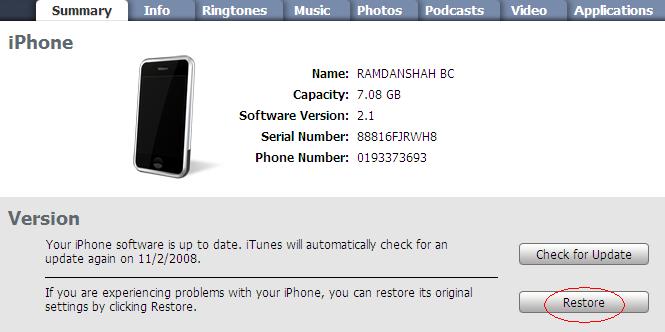
Step 4: Hold the “SHIFT” key and click the “Restore” button simultaneously. The iTunes file dialog will pop up for you to select the firmware file. Locate the “iPhone1,2_2.2.1_5H11_Restore.ipsw” that you have downloaded in previous step and click “Open”.

Step 5: iTunes will then restore your iPhone with firmware 2.2.1 automatically. Keep your iPhone connected, don’t touch anything and wait until the process complete.

Jailbreak with QuickPwn 2.2.5-2


Step 6: Your iPhone should completely restore to firmware 2.2.1. But it’s still "Unjailbreak" right now

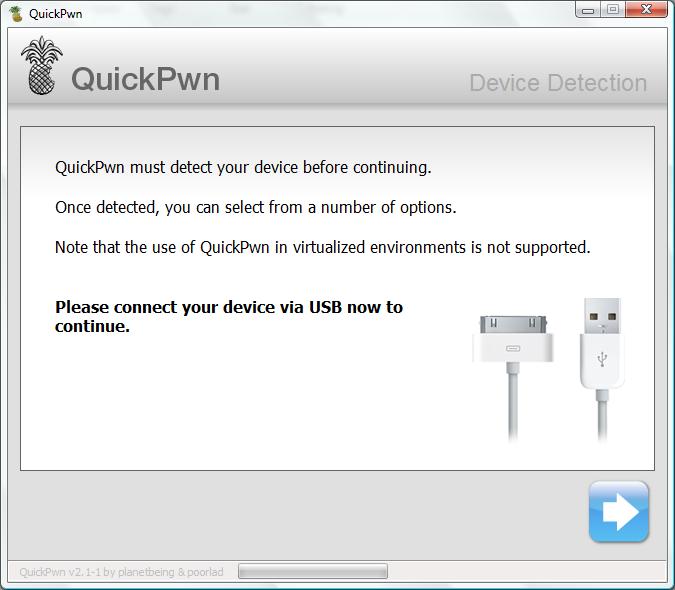
Step 7: Launch QuickPwn 2.2.5-2 to start jailbreak. Make sure your iPhone connect via USB cable and then click blue button to proceed.

QuickPwn 2.2.5-2

Step 8: You are required to provide the firmware 2.2.1 IPSW file. Click “Browse” button to locate the “iPhone1,2_2.2.1_5H11_Restore.ipsw” were you had downloaded in Step 2. Once complete, QuickPwn will verify with the mark symbol. Then click blue arrow button to proceed.


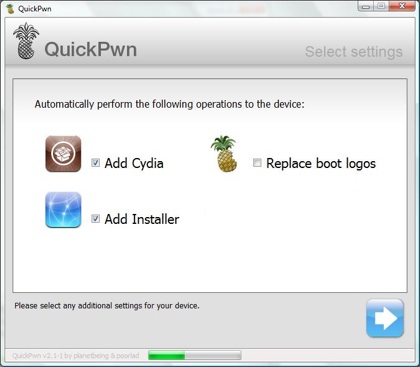
Step 9: You are required to configure the settings for QuickPwn. Normally, you could mark all checkboxes (i.e. Add Cydia, add installer, Replace boot logo). If you would like to keep the Apple logo already in your iPhone, left “Replace boot logo” unmarked. Click blue arrow button to proceed.

Step 10: Make sure your iPhone should still be connected with USB cable. QuickPwn requests you to confirm it once again before unlock & jailbreak process will begin. If you’re ready, click blue arrow button to proceed.


Step 11:
QuickPwn automatically puts the iPhone into recovery mode. After that, you’ll be instructed to hold Home button for 5 seconds. Then hold Home and Power buttons together for 10 seconds. Next, release Power button and continue to hold Home button until your iPhone is in DFU mode (QuickPwn will inform you automatically when you’re in DFU mode).

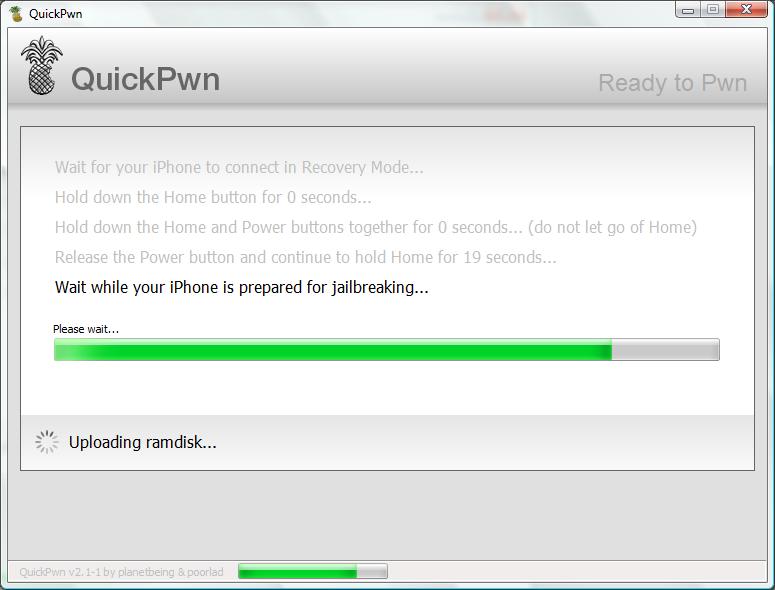


Step 12: During unlocking & jailbreaking process, your iPhone screen shows downloading jailbreak data and flashing NOR progress. What you have to do just keep waiting and don’t touch anything to your iPhone.


Step 13: QuickPwn will let you know the jailbreak process is successful. Your iPhone will be restarted automatically.


Step 14: Now jailbreaking process has complete with iPhone firmware 2.2.1. Finally, sync back your iPhone to restore your backups data with iTunes 8.0.2.

Step 15: For beginner user, you might be want to know what to do after Jailbreak. Check out my post here on how to use Cydia. For those who already knew about the Cydia you could ignore this step.

Note: If you have problem and troubleshooting during jailbreak using QuickPwn. You may see the details here about fixes and solution.


TuTorials


iTunes

How to create free iTunes account for another country without redemption code

How To Make Free Ringtone Over 30 Seconds Using iTunes (Windows)

How To Create 30 Seconds Ringtone Using iRinger (Windows)

Downgrade iTunes 8.2 And Where To Download An Older Version Of iTunes

How To Create A Genius Playlist On The iPhone

How To Completely Uninstall iTunes For Windows

How To Transfer App Purchases From iPhone To iTunes

Switching iTunes Library to Your New Computer

Tip To Use Multiple iTunes Libraries on a Single Computer

Transfer iPhone Apps Between Computers Using iTunes (Home Sharing)


Unlocking & Jailbreaking

How to unlock & Jailbreak iPhone 2G for firmware 2.1 using QuickPwn 2.1 (Windows)

How to Unlock & Jailbreak iPhone 2G for firmware 2.2 using QuickPwn 2.2 (Windows)

How to Jailbreak iPhone 3G for firmware 2.1 using QuickPwn 2.1 (Windows)

How to Jailbreak iPhone 3G for firmware 2.2 using QuickPwn 2.2 (Windows)

How To Unlock iPhone 3G for firmware 2.2 using YellowSn0w

How To Unlock & Jailbreak iPhone 2G (Firmware 2.2.1) Using QuickPwn 2.2.5 (Windows)

How To Jailbreak iPhone 3G (2.2.1 Firmware) Using QuickPwn 2.2.5-2 (Windows)

Downgrade iPhone 3G Baseband To 2.28.00 Using 3G Fuzzyband Downgrader

Guide To Unlock iPhone 3G (2.2.1 Firmware) Using YellowSn0w

Guide To Unlock iPhone 3G On iPhone OS 3.0 Using Ultrasn0w

Guide To Jailbreak And Unlock iPhone 2G For 3.0 Firmware using RedSn0w (Windows)

Guide To Jailbreak iPhone 3G For 3.0 Firmware Using Redsn0w (Windows)

How To Unlock iPhone 3GS Using Purplesn0w

How To Jailbreak iPhone 3GS Using Redsn0w v0.8 (Windows/Mac)

Guide To Unlock iPhone 3GS Using Ultrasn0w

How To Downgrade iPhone 3GS From OS 3.1 To 3.0 Using Saurik Server

Guide To Jailbreak iPhone OS 3.1.2 Using Blackra1n (Windows)

How To Jailbreak And Unlock iPhone 2G 3.1.2 Using Blackra1n

How To Untethered Jailbreak for iPhone OS 3.1.3 Using Spirit

Guide To Unlock iPhone 4 Using Ultrasn0w 1.0-1

Guide To Jailbreak iOS 4 (For iPhone 4, 3GS, 3G)

Guide To Jailbreak iOS 4.3.1 for iPhone 4, 3GS and iPad1 using Redsn0w (Windows/Mac)

Guide To Unlock iOS 4.3.1 Using Ultrasn0w 1.2.1 (iPhone 4, 3G/3Gs & iPad)


iPad Jailbreaking

Guide To Jailbreak iPad 3.2 Using Spirit


App Store

Run Flash Video On iPhone & iPad Using SkyFire Browser

Create and Edit Video Like iMovie Using Splice Video

Stream Video from Computer to iPhone & iPad Using AirView

Touch Mouse: Turn Your iPhone Into Wireless Mouse And Keyboard

Transfer & Manager Your Files Using FileApp Pro

Meebo: Free Instant Messaging

Qik Video: Record Video And Facebook Sharing

iLoader: Upload Multiple Photo To Facebook

Qik: Stream Live Video From iPhone

Dragon Dictation: It's Free Voice Recognition Apps

Fring Now Supports Voice & Video Calls Over 3G

DropBox: View, Sharing And Restore Files On-The-Go

Bing: New Search Engine For iPhone

Transfer iPhone Photos To Computer Wirelessly Using WiFiPhoto

Record Outgoing Phone Calls Using Recorder Apps

iVideoCamera - Record Video For iPhone 2G & 3G

Sign Document Right On Your iPhone Using Zosh

How To Transfer Files To PC & View Document Using Air Sharing (Windows)

How To Transfer Files To PC & View Document Using Air Sharing (Vista)

How To Cheat SimCity Game For iPhone

How To Cheat Fieldrunners Game For iPhone

How To Cheat Nanosaur 2 Game For iPhone

How To Cheat Bugdom 2 Game For iPhone

How To Install Cracked .IPA File To iPhone

How To Join Meeting Anywhere Using WebEX

How To Use iDownload

cadTouch

iCatchall: 16+ Apps In One

FTP On The Go: An FTP Client For The iPhone

MotionX GPS: Overview

PhotoGene: Digital Photo Enhancement For iPhone

Army Knife: 6-in-1 Multitool for iPhone

Drop Copy; Share Files Wirelessly To Mac

Kindle: Ebook Reader For iPhone

Google Book Search For iPhone

How To Sync Google Contacts & Calendar With iPhone

Skype For iPhone

iEmoji - get Emoji, smiley, emoticon keyboard

How To Use Skype Over 3G/EDGE On iPhone

Yahoo! Messenger For iPhone

Wall Street Journal For iPhone

iPhone Programming Newbies: Develop iPhone Apps

Microsoft Tag Reader for iPhone

Dictionary.com Is Available For iPhone

Leaf Trombone For iPhone

Share Contacts & Images Between iPhone Using Mover

SlingPlayer Mobile Available For iPhone

ReaddleDocs: Document Viewer

Swine Flu 101: Swine Flu Pandemic Info

Amazon Kindle Store Are Optimizes For iPhone

Memory Status: Cleaning Up Your iPhone Memory

Read Favourite Web Page Offline Using InstaPaper

Deposit Check via iPhone

Unlock And Start Your Car Using Viper SmartStart App

Camcorder – Video Recording For iPhone 2G & 3G

5 Great iPhone Apps For Kids


Cydia Apps

How To View YouTube When Offline/On-The-Go

How To Fix Caller ID and SMS ID for Number Mismatch Problem

How To Install WinterBoard Application

How To Install LockDockBar

How To Install iSpazio DockFlow

How To Install Cycorder (Free Video Camera)

How To Customize Your Sliders With Apple Logo Sliders (V1.1.4)

How To Install Chronus

How to install and use SBSettings

How To Change SBSettings Theme

How To Add Sources Via Cydia

How To Use Cydia

How To Install iMobileCinema via Cydia

How To Add YellowSn0w Sources

How To Add Five Dock Icon

How To Install iPod Widget For SBSettings via Cydia

How To Add Fifth Icon For iPhone SpringBoard Column

How To Animated Clock Icon on SpringBoard

How To Install Clippy Via Cydia

How To Install Mobile Installation Patch Via Cydia

How To Install Backgrounder Via Cydia

How To Custom Your Carrier Logo Using MakeItMine

Custom Your Dock Icon into Reflective Dock Icon

How To Add 5-Row QWERTY Keyboard

ContactFlow: Navigate Contacts in Cover Flow Style

How To Uninstall Cydia Application Directly From SpringBoard

Display Lock Calendar Event On iPhone Lock Screen Using Lock Calendar

How To Organize Your Application Icon Into Folders

How To Forward A Contact On iPhone

Updated: Backgrounder for iPhone Adds Badge and Task List Mode

How To Activate Standard MMS On iPhone 2G (OS 3.0)

How To install Cracked .IPA Files To iPhone OS 3.0

How To Install SwirlyMMS V2 (Cracked)

How To Install ToneFXs v1.501 (Cracked)

GPower: Adds Reboot And Respring To iPhone

Battery Control: Disable Battery Icon And Show Battery in Percentage

How To Install Universal Search 1.05 Patched (Cracked)

How To Install Safari Download Manager 1.3.1-1 (Cracked)

How To Install qTweeter 2.6 (Cracked)

How To Install Universal Search 1.08-1 (Patched)

QuickScroll: Scroll Your Document And SpringBoard Quickly

How To Install iFile 1.0.1-1 Patched

How To Install Call Controller v0.4 (Cracked)

How To Install Popup Blocker 1.1.1 (Cracked)

How To Install Video Toggle: Edit Videos on Your iPhone 2G And iPhone 3G

How To Install iRealSMS 2.0.9.3 Keygen

How To Install Recent Call Log Delete (Cracked)

How To Install Auto Silent 1.5.4 (Cracked )

How To Install PogoPlank (Cracked)

How To Install MobileLog 3.0 (Cracked)

Beejive IM 3.0 Updated Patch 100% Working

How To Install Elert .96.1 (Cracked)

How To Install iFile 1.1.0-1 (Cracked)

Orbit – The Expose for Jailbroken iPhone (Cracked)

How To Install MultiIconMover Via Cydia

How To Install LockInfo 1.0.113 (Cracked)

How To Install Firewall IP (Cracked)

How To Install iDashboard 1.0 (Cracked)

How To Enable Voice Control On iPhone 2G & 3G

How To Install Overboard 1.0 (Cracked)

How To Install Orbit 1.1 (Cracked)

How To Install Nes4iphone 1.0.0 (Cracked)

How To Install 3G Unrestrictor 2.0 (Cracked)


How To Install Multiflow (Cracked)

How To Install MobileDashboard 1.0 (Cracked)

Custom iPhone Carrier Name Using FakeCarrier


How To Install CategoriesSB v1.5.3 (Cracked)

Control Music With Volume & Sleep Button Using GlovePod

How To Install iRealSMS 3.0 (Cracked)

How To Install FullPreview (Cracked)

Need For Speed Shift (NFSS) Cheat

How To Install Dock v1.0.1

How To Install Snes4iphone v6.5.0 (Cracked)

Add Widget To Your iPhone Lock Screen Using Cydget Apps

How To Install MultiExchange v0.1 (Cracked)

How To Install iRemix v1.04

Cyder 2: Download Cydia Packages

How To Install Firewall IP v1.30 For Free

Fast Reader: Read RSS News From iPhone Lock Screen

How To Install iWep Pro Version 1.10 For Free

How To Install MyWi v3.4.2 For Free

How To Install Insomnia Pro v4.0 For Free

How To Install My3G 1.3.1 For Free

How To Install iBluenova 2.0 For Free

How To Install Snappy 2.1 For Free

How To Install AndroidLock XT For Free

How To Install iFile 1.2.0-1 For Free

How To Install Safari Download Manager 1.4 For Free

How To Install Pirni Pro 1.1.7-2 For Free

How To Install 3G Unrestrictor 2.2-3 For Free

How To Install YourTube 2.0-1 .deb file For Free (iPhone & iPad)

How To Install iFile 1.4.1-1 .deb file For Free (iPhone & iPad)


How To Install My3G 4.6.1 .deb file For Free


How to Install TetherMe 1.3-12 .deb File For Free

How To Install Safari Download Manager 1.5.0-1 .deb File For Free (iPhone & iPad)

How To Install FBhotosave 1.0 .deb File For Free

How To Install FaceBreak 1.40 .deb File For Free

How To Install Lockdown Pro 2.0 .deb File For Free

How To Install Barrel 1.5.0-1 .deb File For Free


How To Install MyWi 4.52.2 .deb File For Free (iPhone & iPad)

How To Install FolderEnhancer 1.4.0.2-1 .deb File For Free

How To Install Safari Download Manager 1.5.1-1 .deb File For Free (iPhone & iPad)

How To Install iBye v2.4.5 .deb File For Free

How To Install iTracker v1.3.1 .deb File For Free

How To Install ChatPic v1.0 .deb File For Free

How To Install Mail Enhancer 1.1-2 .deb File For Free

How To Install Display Recorder v1.1.3 .deb File For Free

How To Install FireWall iP v2.01 For Free

How To Install iBlueNova v2.0.1 For Free

How To Install Brightness Switcher v1.05 For Free

How To Install Celeste v0.9.0-218 For Free (iPhone, iPad & iPodTouch)

How To Install iFile 1.5.0-4 .deb file For Free (iPhone & iPad)

How To Install AndroidLock XT 2.3 .deb File For Free

How To Install Barrel 1.5.5-2 .deb File For Free


How to Install TetherMe 2.1-1 .deb File For Free


iPhone Theme (WinterBoard)


How To Install Tablet Theme For WinterBoard

How To Install Leopard Theme (WinterBoard)

How To Install Heroes Faddle Theme (WinterBoard)

How To Install Vista Mobile Theme (WinterBoard)

How To Install WinterBoard Theme Using Disk Aid

How To Install Perfect Storm (BlackBerry Storm) Theme (WinterBoard)

Snow White: Calculator Theme For WinterBoard

Schiller's iPhone Dock Theme (WinterBoard): True iPhone Icon For Your Dock Icon


How To Create Rotating Wallpaper Using Disk Aid (WinterBoard)

Turn Your Original Keyboard Into Storm Keyboard (BlackBerry Storm)

Turn Your Original Keyboard Into MacBook Air Keyboard

Winter Settings For iPhone Settings Application

10 Beautiful iPhone Themes (WinterBoard)

How To Install Amphibious (WinterBoard Theme)

How To Install Buuf 2 Theme (WinterBoard Theme)

How To Install Acier Theme (WinterBoard Theme)


Backup & Restore

How To Backup Cydia Application using AptBackup Before Upgrade

How to Backup App Store Application using iTunes Before Upgrade

How To Backup Your Application Files Using Chronus

How to Tranfser Files Between iPhone and Computer

How To Transfer Photo To PC (Transfer Files Vol.1)

How To Transfer Screenshot Picture To PC (Transfer Files Vol.2)

How To Transfer Video (Cycorder) Files To PC (Transfer Files Vol.3)


Tips & Tricks


SimCity Cheats For iPhone

Easy ScreenShot for iPhone

How to put your iPhone into DFU Mode

Recovery And Restore Mode

Quick Reset

Jump to the top of a Safari browser page

Save image via Safari and Push Mail

iPhone’s “Home” button tricks

Format Fix for iPhone 2.1 firmware

How to Backup Cydia’s Application

How to Backup App Store’s Application

How To Delete Application/Icon on iPhone

Force Quit For “Freeze” Application

Soft Reset

How The iPhone Touch Screen Works

How To Pause Application Download

How To View iPhone Storage Information

Wifi IP Address

Jump To Your First Home Screen

QuickPwn: Troubleshooting And Fixes

Brothers In Arms: Troubleshooting And Fixes

Scientific Calculator

Fool Your Friends With Simulated Cracked Screen

How To Capture iPhone Lock Screen For 2.2 Firmware

Archive Gmail On iPhone

Wifi Grayed-Out: Troubleshooting & Fixes

How To Import SIM Contact To iPhone

iPhone OS 2.2: Troubleshooting & Fixes

Skype: Troubleshooting & Fixes

How To Disable SMS Preview On iPhone Home Screen

How To Use Skype Over 3G/EDGE On iPhone

How To Change iPhone Email Signature

Shortcut To Toggle WIFI On iPhone

Shortcut To Toggle WIFI Using SBSEttings

How to Enable Emoji Icons on iPhone 2.2 (Jailbreak iPhone)

How To Check iPhone Firmware And Baseband Version

How To Reset Your iPhone When It's Hung

Need For Speed Undercover (NFSU) Cheats

How To Free Your iPhone Memory

How To Use SlingPlayer Mobile Over 3G/EDGE On iPhone

How to Passcode Lock Your iPhone

How To Keep Track of Your Data Usage For iPhone 3G

Downgrade iTunes 8.2 And Where To Download An Older Version Of iTunes

How To Create A Genius Playlist On The iPhone

Free iPhone OS 3.0 Tethering On Any Carrier

How To Completely Uninstall iTunes For Windows

Update Your 2G iPhone to 3.0 Firmware Without Losing Activation, Unlock

Star Defense Cheats

iPhone OS 3.0 Feature Comparison

iPhone 3GS Feature Comparison

Nes 3 Version 3.3.4 Cracked

Read Favourite Web Page Offline Using InstaPaper

How To Enable Emoji Icons On iPhone OS 3.0

How To Import Videos File With An iPhone 3GS To Your Computer

Hide SMS Preview in iPhone OS 3.0

DOOM Resurrection Cheats

New Backgrounder Supports iPhone OS 3.0

How To Activate Standard MMS On iPhone 2G (OS 3.0)

Locate Your Lost iPhone Using Mobile Me

Show iPhone Battery Meter in Percentage

Tip: Force Quit An Application For iPhone 3.0

Tips To Improve Your iPhone Battery Life

UltraTips From Dev Teams: UltraSn0w Troubleshooting And Fixes

Push Notification On Jailbroken iPhone: Troubleshooting And Fixes

Tip: Just Shake and Undo Typing For iPhone 3.0

How to Use Conditional Call Forwarding

Tips To Select An iPhone Unlock/Jailbreak Tutorial

Cydia Crashes: TroubleShooting & Fixes

Tip: How To Transfer App Purchases From iPhone To iTunes

Tips: iPhone Headset Shortcuts

Get And Buy Factory Unlocked iPhone 3GS

TomTom Us/Canada/Germany/Austria/Switzerland IPA (Cracked)

iPhone 3G WIFI: TroubleShooting & Fixes

Updated: iSpazio Repository for Cydia

Edit Videos On Your iPhone 2G And iPhone 3G Using Video Toggle

TroubleShooting & Fixes: iPhone Stuck On Apple Logo

TroubleShooting & Fixes: "Waiting for Reboot" Hang Problem (RedSn0w)

Move Your Cycorder,Youtube,VideoRecorder3G Videos To Camera Roll Using VideoMover

Enable iPhone 3.1’s Anti-Phishing Feature

TroubleShooting & Fixes: DiskAid or iPhone Browser Issue After Blackra1n Jailbreak

TroubleShooting & Fixes: YouTube, GPS, WiFi Problems After Blackra1n Jailbreak

Tips: Secure Your Jailbroken iPhone From SSH Hack

Tips: Enable Internet Tethering on iPhone After Blackra1n Jailbreak

TroubleShooting & Fixes: Cydia Crashing On Dec 28

Need For Speed Shift (NFSS) Cheat

Troubleshooting & Fixes: Push Notification On Jailbroken iPhone

How To Downgrade iPhone OS 3.1.3 Baseband Using Fuzzyband (iPhone 3G Only)

How To Disable iPhone’s Auto Rotation Feature

How To Install Cydia Apps Without WiFi

Troubleshooting & Fixes: Cydia Crash After iPhone Jailbreak

Tips To Enable iOS 4 Multitasking on iPhone 3G

Tips: Enable Emoji Icons On iOS 4

Tip To Prevent Accidental In-App Purchase On iPhone

How To Setting Personal Hotspot On iPhone 4 (iOS 4.3)

iPhone Tips: Change the Default Browser

iOS 5 To Download

More iCloud Storage, Get 50GB Free From Box.net