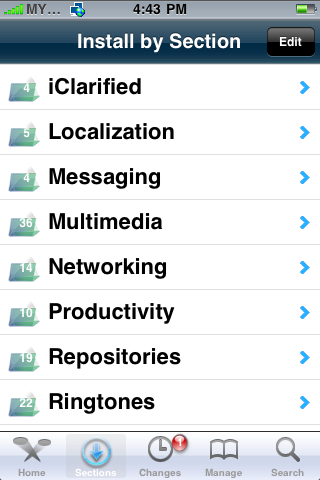
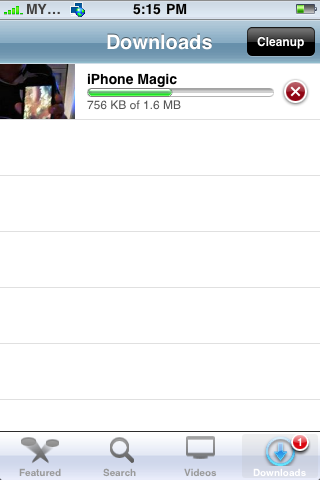
This is volume 4 of the Transfer Files series. In my previous post, i was covered how to transfer files to PC for volume 1, volume 2 and volume 3. For jailbroken iPhone user, you might be already used MxTube application, which is allow you to view your favourite YouTube video when your offline. Check out my post here on how to install MxTube via Cydia.
You may want to save the mp4 files into PC after downloaded YouTube video due to insufficient memory space in your iPhone hard disk. The easy way to that is using Disk Aid. DiskAid is a freeware that lets you transfer files between iPhone / iPod Touch and PC. With DiskAid you can manually select all or one by one of your favorite video by copying and transfer it to PC without using iTunes. See more details about DiskAid and download it here.

Make sure your are at “Media Folder”, you can check it out by select it at the bottom left of your DiskAid window. Click at “MxTube” folder, for your information all mp4 video files in MxTube have been save in the “MxTube” folder, next time you just select this folder when you like to access all your mp4 video files in the future. Select “MxTube” folder and all mp4 video files information will appear on your right side bar.
Right Click one of the mp4 video files that you would like to transfer and select “copy to folder” and save it to folder where you created before. Alternatively, you also can transfer or copy file by clicking “Copy to Folder” icon at the top of the DiskAid window.
You may also can copy folder only to PC. Just select “Media” folder. Right click on “MxTube" and select “copy to folder” and save it to your preferences folder in PC. This method is suitable for those who would like to transfer large amount of mp4 video files to PC.